
Live or Not
Creator is live, but no Mac notification? Check these four things
Distinguish a missed notification from an unconfirmed live status. Check macOS permissions, Focus, creator mute settings, and your Mac’s connection.
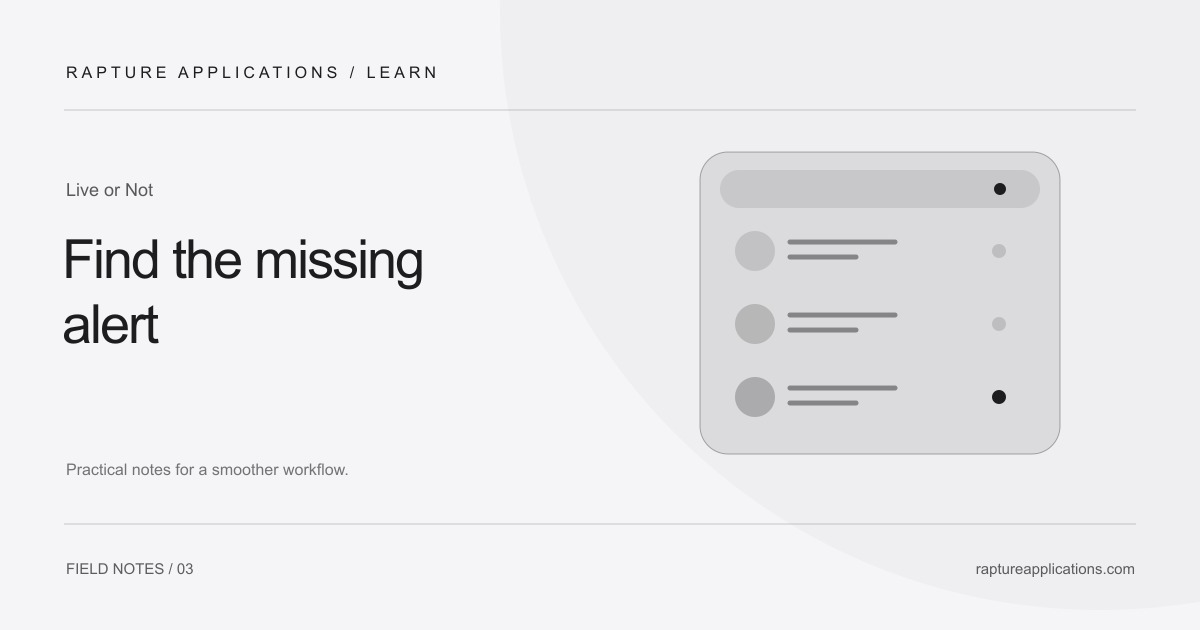
First, open the app’s menu
There are two different questions: did the app detect a live show, and did macOS display a notification? Opening Live or Not’s menu helps separate them. If the creator is marked live inside the app, start with notification settings. If the current state has not been confirmed, start with the connection and refresh checks below.
This distinction prevents a common troubleshooting loop: changing notification permissions when the app has not yet received a fresh status. Note the creator and the approximate time so you can compare the next check with what you see on their public profile.
1. Check notification permission and Focus
In macOS System Settings, open Notifications and find Live or Not. Confirm that notifications are allowed and choose a presentation style you will notice. Then inspect your active Focus settings. Apple lets you choose which apps may interrupt a Focus; an app can have notification permission and still be silenced by your current Focus.
If the app shows a creator as live but you did not see a banner, these are useful places to start. Avoid repeatedly removing and re-adding a creator just to test whether macOS is displaying banners.
2. Check whether that creator is muted
A muted creator remains visible in the menu but is intentionally quiet. In Live or Not, muting also removes that creator from the red live count. If you want their future live alerts, turn alerts back on for that account.
You will not receive another alert for the same ongoing show each time you open the menu.
3. Check sleep, connectivity, and freshness
Keep your Mac awake and online, then open the menu to refresh. Allow time for your watchlist to update, especially if it is long or your connection was recently interrupted.
“No live show detected” means the last check found no live broadcast. A connection message means the app could not check. Refresh once your connection is restored.
4. Confirm the account, then report a reproducible mismatch
Open the creator’s profile and confirm that the saved handle belongs to the person you intended. If a live badge remains visible there but the app still cannot confirm it after a fresh check, contact Rapture support with the app version, creator’s public profile link, time, and the status shown in the app. Do not send passwords or payment information.
Whatnot support is experimental, so a changed profile or temporary loading issue may need investigation. A clear comparison gives support something specific to reproduce instead of guessing from a missing notification alone.