Your first week with Live or Not: a practical trial checklist
Use the no-card trial to test creator matching, live alerts, muting, and your real Mac workflow before choosing a monthly or yearly subscription.
Read article
Learn
Practical guides for recording, streaming, and catching the moments that matter.
Use the no-card trial to test creator matching, live alerts, muting, and your real Mac workflow before choosing a monthly or yearly subscription.
Read article
Understand the difference between detecting a live broadcast and reminding you about a scheduled show, premiere, or release.
Read article
Distinguish a missed notification from an unconfirmed live status. Check macOS permissions, Focus, creator mute settings, and your Mac’s connection.
Read article
Build a small live-selling watchlist, decide which alerts deserve attention, and use per-creator muting without losing sight of active shows.
Read article
Set up a focused Whatnot watchlist on your Mac, understand background checks, and open a detected show without keeping seller tabs open.
Read article
Reduce avoidable retakes with short recording blocks, fast clip review, and a clear separation between recording, transferring, and editing.
Read article
Use a simple project folder structure, preserve camera originals, and track good takes without renaming files during transfer.
Read article
Check compatibility, USB connection, destination storage, and a sample transfer before starting a desk-based Sony recording session.
Read article
Understand camera-original files, webcam capture, and monitoring previews before choosing a Mac video-recording workflow.
Read article
Plan a desk-based recording workflow that keeps your camera connected, transfers original clips, and makes reviewing each take easier.
Read article
Create stable folders, meaningful audio filenames, and a simple refresh routine so your Stream Deck soundboard survives edits and additions.
Read article
Match soundboard playback modes to short effects, music beds, repeated cues, and emergency stop controls before your next live session.
Read article
Test the complete Mac soundboard audio path so effects reach your recording or stream once, at a useful level, alongside your microphone.
Read article
Separate file preparation, silence inside a clip, audio output, and recording paths when diagnosing delayed soundboard playback.
Read article
Build a small, dependable soundboard using local audio, clear playback modes, and a dedicated stop key in Responsive Soundboard.
Read article
Keep your favorite GIFs together, choose what plays next, or enjoy a playlist on your Stream Deck+ touchscreen.
Read article
Pick readable GIFs for a small touchscreen: simple subjects, useful crops, clear motion, and a fit setting that keeps the important part visible.
Read article
Use the Stream Deck+ dial to seek backward and forward through a GIF, hold a frame, or gently resume playback after scrubbing.
Read article
Make a GIF playlist for your Stream Deck+ touchscreen, or keep one favorite animation on repeat.
Read article
Add a favorite GIF to your Stream Deck+ touchscreen, choose how it fits, and use the dial to pause, rewind, and play with GIF Deck.
Read article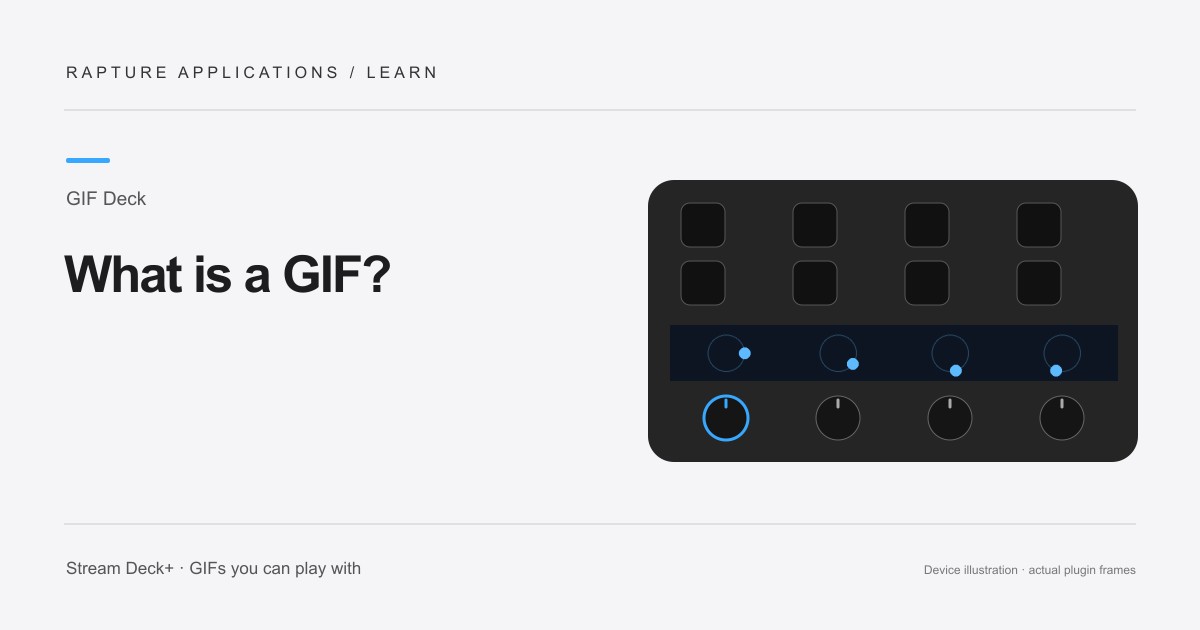
Learn what a GIF is, how animated GIFs differ from videos, and how GIF Deck brings your favorite loops to the Stream Deck+ touchscreen.
Read article
Understand USB speed, hubs and cables, and try a direct-connection check when your Stream Deck+ touchscreen or controls behave unexpectedly.
Read article
Give a favorite video the whole Stream Deck+ touchscreen. Set up Panorama, adjust the picture, and use the dials to revisit your favorite moments.
Read article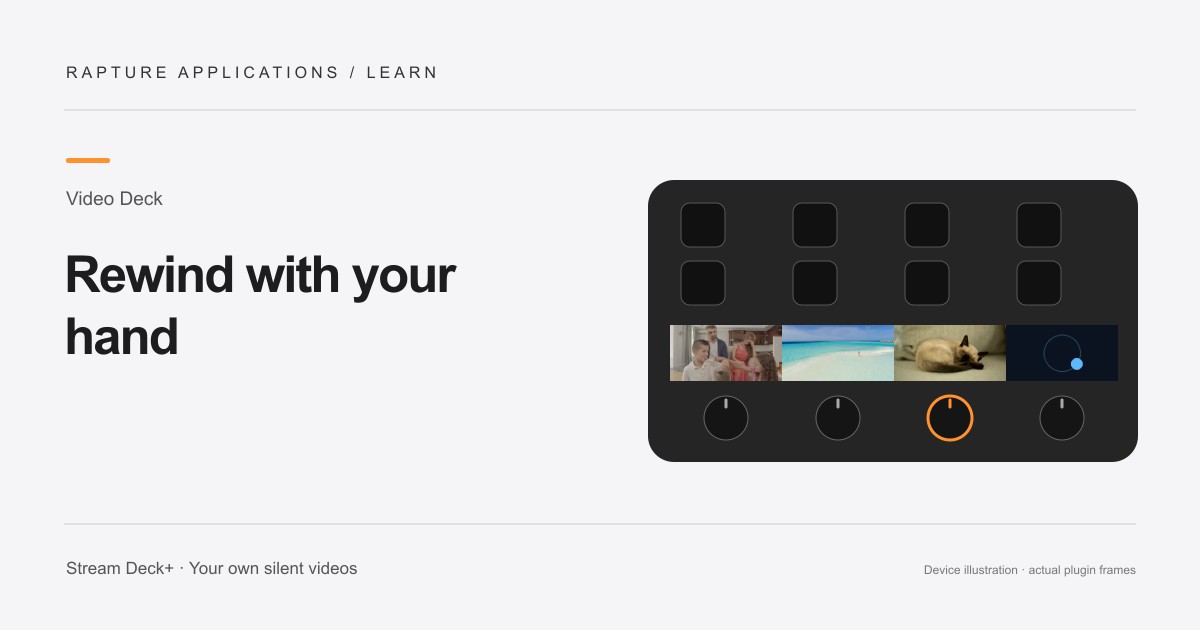
Rewind local videos, pause on a favorite moment, and choose whether playback gently resumes after seeking with the Stream Deck+ dial.
Read article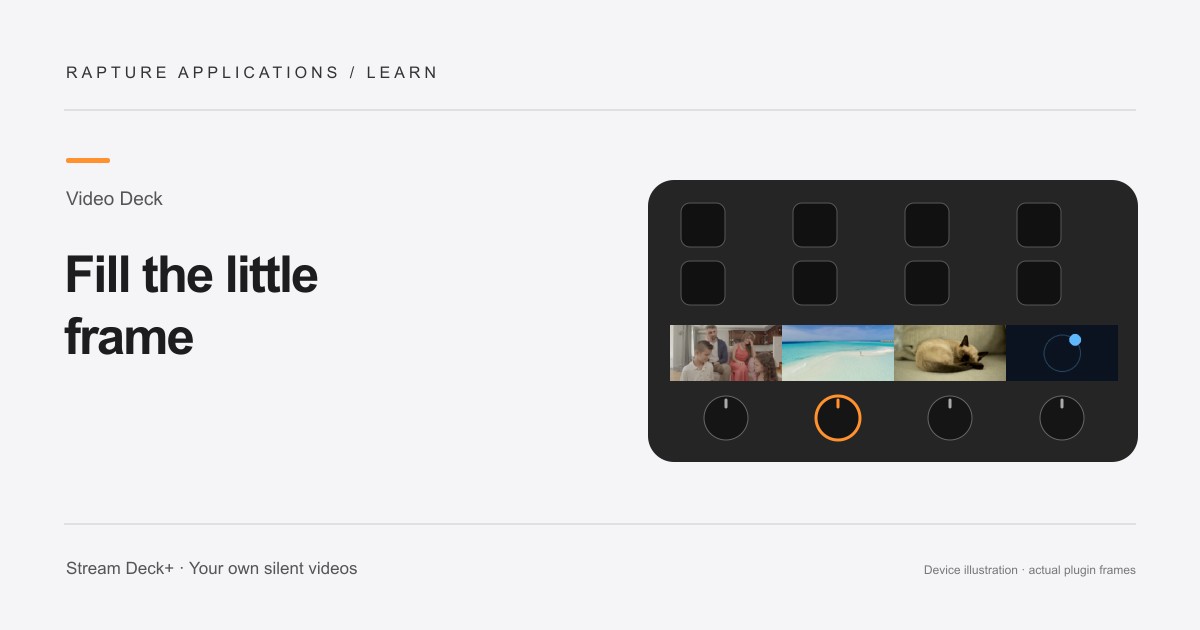
Understand Video Deck’s Fill section and Fit whole video options, avoid unwanted picture borders, and keep faces visible in a small display.
Read article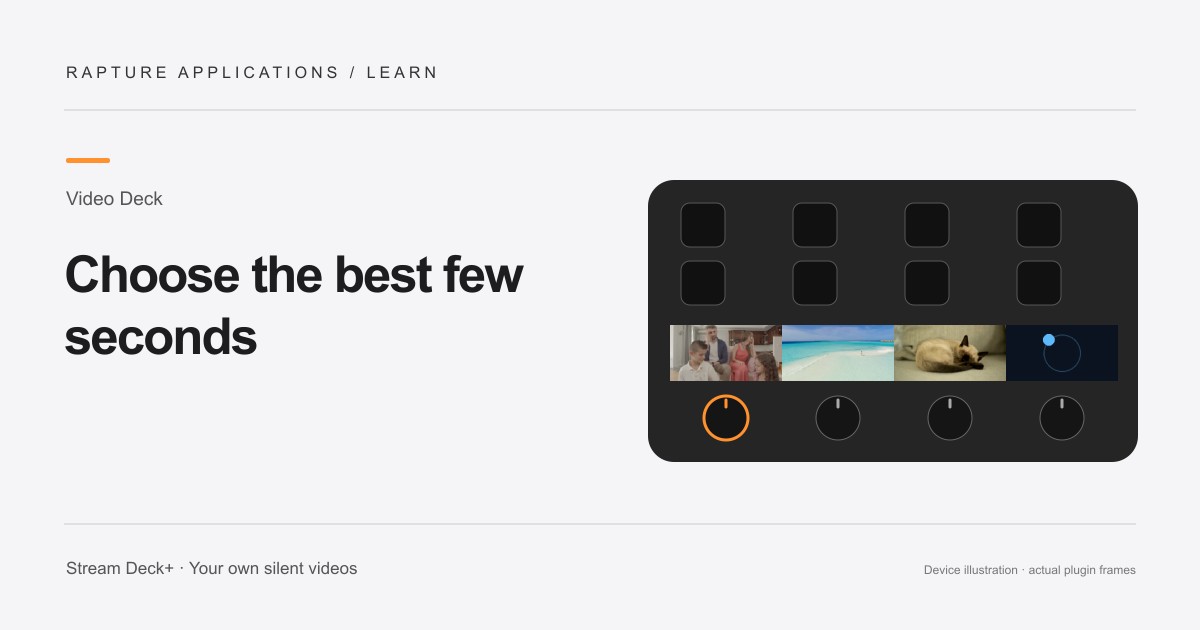
Choose a clear moment, trim a local copy, and pick the right picture fit for family, travel, and pet videos on Stream Deck+.
Read article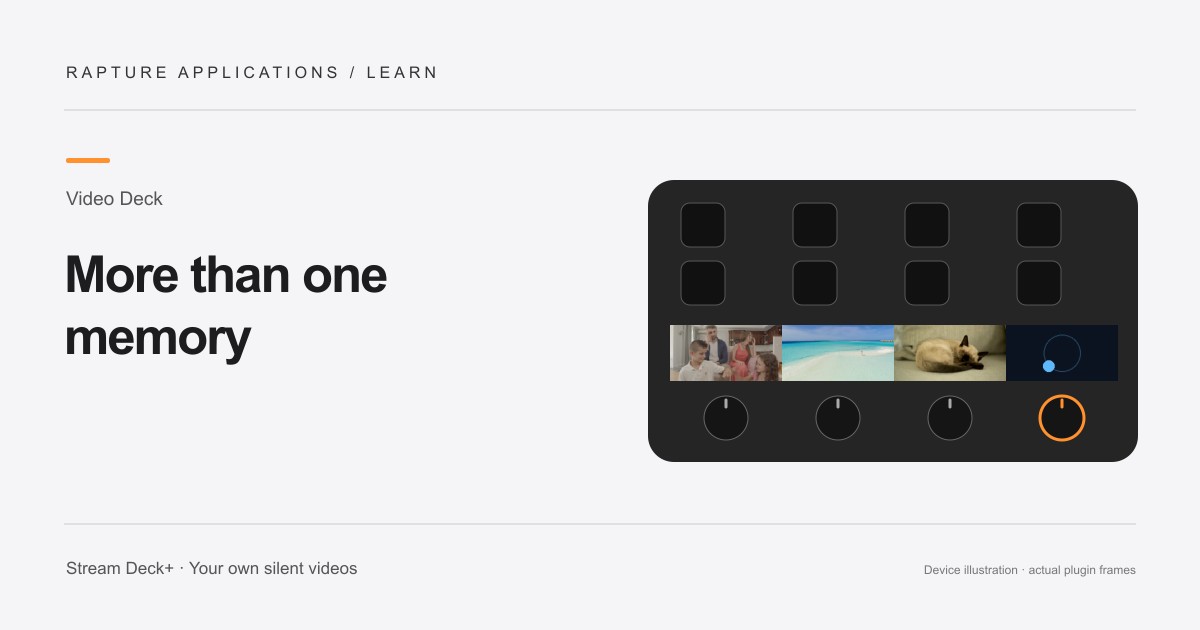
Add several local videos to one Stream Deck+ section and play them in order, or keep a single favorite clip looping with Video Deck.
Read article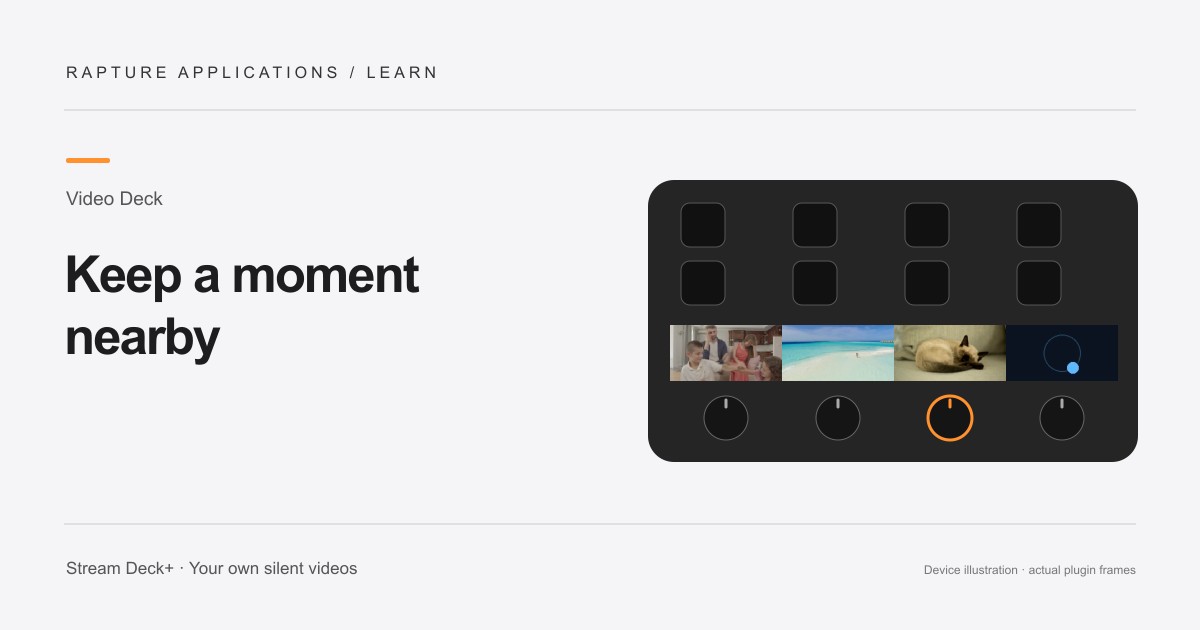
Put a family moment, pet video, or vacation clip on your Stream Deck+ touchscreen with silent playback and dial-controlled rewind.
Read article