
RAPTURE APPLICATIONS
How to play animated GIFs on your Stream Deck+ touchscreen
Add a favorite GIF to your Stream Deck+ touchscreen, choose how it fits, and use the dial to pause, rewind, and play with GIF Deck.
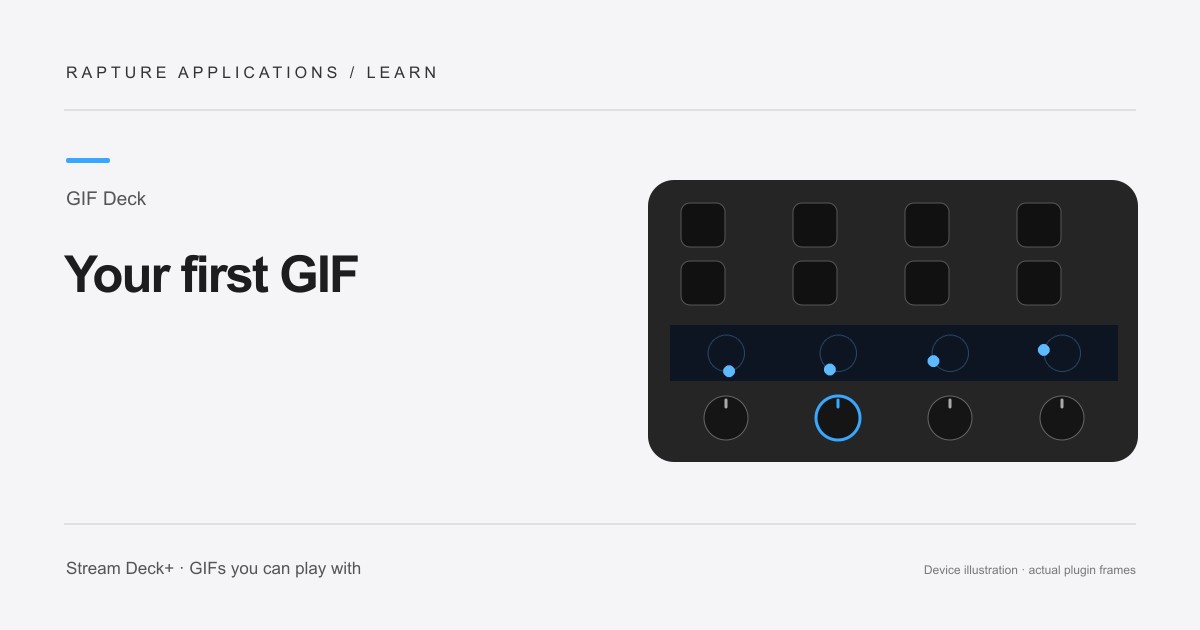
GIF Deck is coming soon to Elgato Marketplace. This guide explains the experience and how its controls work.
Give a favorite GIF its own place on your desk
A tiny looping animation can make a familiar desk feel more personal. It might be a pet, a favorite reaction, or a simple moving pattern. GIF Deck puts that animation on a touchscreen section of your Stream Deck+, with the dial underneath acting as a playback control.
Start with one GIF that is easy to recognize at a glance. Each dial action uses one of the four touchscreen sections. You can put a different action on another dial later; your first GIF does not need a whole collection or a complicated profile.
Add the file to a dial action
In the Stream Deck app, drag GIF Deck’s Play GIFs action onto a dial. Select that action and use its file picker to choose a local animated GIF. Choose Play this GIF to display it. Use the picker inside GIF Deck rather than the action’s icon picker: the icon and the animation are separate choices.
For a first file, choose a short animation under 4 MB and no more than 300 frames. Small, clearly composed GIFs are easier to read on this display than a large scene with tiny captions. If the import reports that an image is too large, try a shorter version or a smaller canvas.
Choose the picture and playback
Fit whole GIF keeps the complete image visible. Fill section / crop edges fills the section, which may cut off part of a square or tall image. Use the horizontal and vertical position controls to place the part you care about inside the crop.
Forward loop is a useful starting point. Try Half speed if the movement feels busy, or Ping-pong for a pattern that looks good moving both ways. Keep the important subject large; the touchscreen is better suited to a face or simple shape than a paragraph of text.
Turn to rewind, press to pause
Turn the dial in either direction to move through the animation. Press the dial to pause or play; the Play GIFs action also supports tapping its touchscreen section. Enable Gently resume after seeking if you want a playing GIF to ease back into motion after you stop turning.
Keep the action on the active Stream Deck page while you want the animation visible. GIF Deck plays on the awake device’s current page, so choose a profile you actually use at your desk. Once one GIF looks right, you can add a playlist or give another section its own animation.