
RAPTURE APPLICATIONS
Organize your GIF favorites on Stream Deck+
Keep your favorite GIFs together, choose what plays next, or enjoy a playlist on your Stream Deck+ touchscreen.
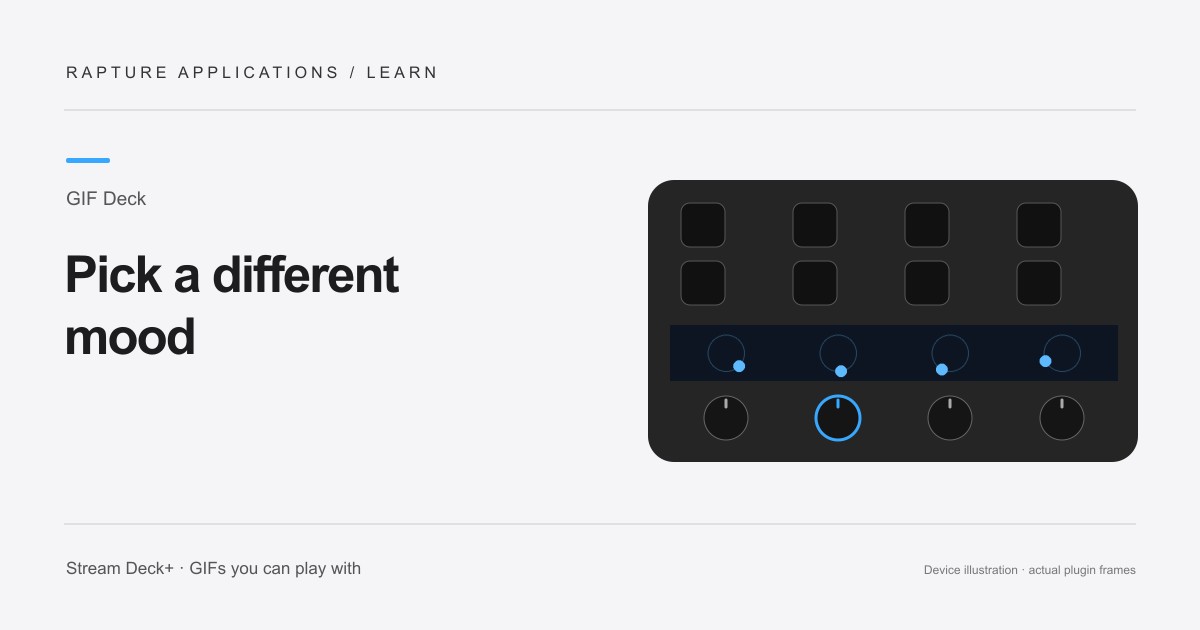
GIF Deck is coming soon to Elgato Marketplace. This guide explains the experience and how its controls work.
Give your collection a little direction
A good GIF collection does not need to be huge. Start with a few animations you enjoy seeing while you work: a calm loop, a pet doing something funny, or a reaction that suits your desk. Choosing a loose theme makes the collection feel intentional rather than random.
You can keep different collections on different touchscreen sections. One could show quiet decorative loops while another rotates through personal favorites. Each section has its own Play GIFs action and its own list, so you can change one collection without rebuilding the others.
Add favorites in one place
Drag Play GIFs onto a dial and select it in the Stream Deck app. Use the file picker under GIF 1 to choose your first animation, then use + Add GIF for the next one. Every item has its own picker, so replacing one favorite leaves the rest of your collection in place.
Files you add keep their filenames in the settings. Give your original files names you recognize before importing them; that makes a growing collection easier to manage. You can add more than three GIFs, although a small first collection is easier to review on the strip.
Choose one favorite or rotate through the list
Use Play this GIF beside an item to select it. Leave Play GIFs one after another off when you want that favorite to stay on display. Enable the setting when you want the collection to play in order and start again after the last animation.
Removing an item takes it out of that action's playlist. Replacing it uses the picker beside the same entry. Review a short collection from beginning to end before adding lots of files, especially when the animations have very different speeds, colors, or levels of detail.
Keep the dial controls familiar
Turn the dial to move backward or forward through the current GIF. Press the dial or tap the touchscreen section to pause and play. These controls stay the same whether the action contains one animation or a playlist, so there is no separate browsing action to learn.
Enable gentle resume if you want a playing animation to ease back into motion after you stop seeking. A paused animation stays paused. Choose a playback direction and speed that suit the collection, then let your favorite loops add a little personality to the desk.