
RAPTURE APPLICATIONS
What is a GIF? A simple guide to animated images on Stream Deck+
Learn what a GIF is, how animated GIFs differ from videos, and how GIF Deck brings your favorite loops to the Stream Deck+ touchscreen.
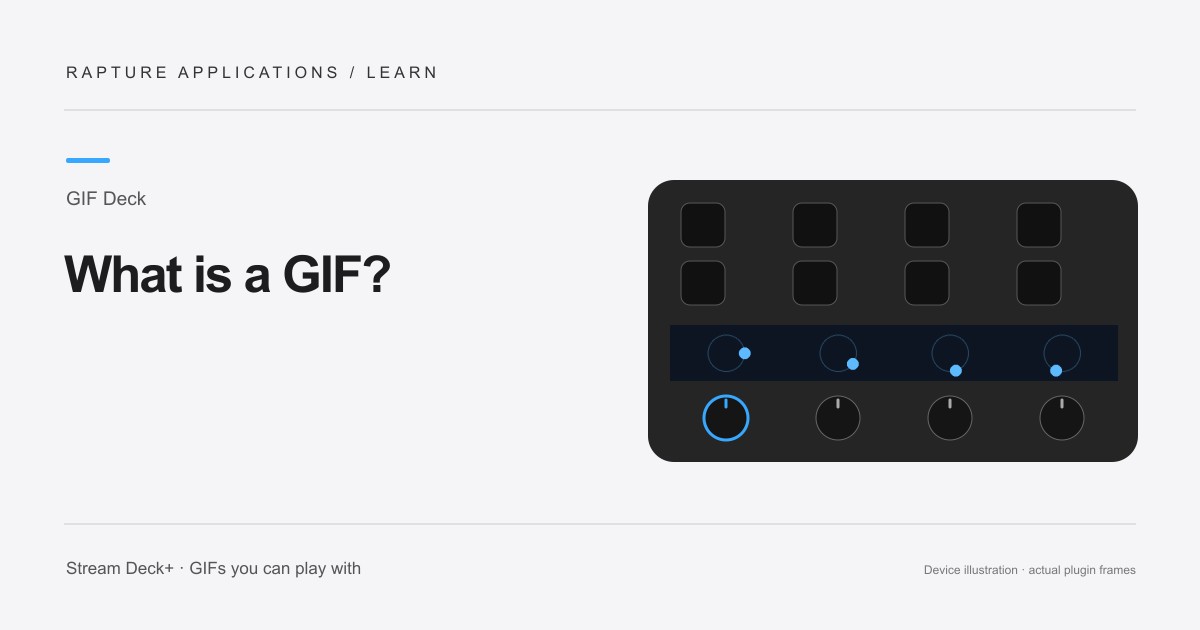
GIF Deck is coming soon to Elgato Marketplace. This guide explains the experience and how its controls work.
A picture file that can contain movement
GIF stands for Graphics Interchange Format. A GIF file can contain a single still image or a sequence of images. In an animated GIF, those images appear one after another with timing information, creating movement. The short repeating reactions you see in conversations are a familiar example.
The format does not contain an audio track. Its appeal is visual: an expression, gesture, or pattern can make sense without pressing a sound control or listening to a clip. Not every GIF moves, so choose an animated file when you want motion on your display.
A GIF, a video, and a meme are different things
A meme describes an idea or joke, not a particular file format. It could be a still picture, an animated GIF, or a video. A clip that looks like a GIF on a website may actually be offered as an MP4 file, so check what you saved rather than relying on its appearance.
For GIF Deck, choose a local .gif file. If the file you have is a video, Video Deck is the separate Rapture Applications plugin for playing local videos silently on the strip. Changing a filename from .mp4 to .gif does not convert the contents.
Put the animation on a Stream Deck+ section
GIF Deck displays your chosen GIF on one touchscreen section of a Stream Deck+. The dial underneath lets you move backward or forward through the animation. You can pause on an expression or enable gentle resume so a playing GIF eases back into motion after seeking.
Start with one clearly framed subject: a pet, a face, or a bold moving shape. The section is small and wide, so tiny captions and crowded scenes are harder to recognize. Choose Fit whole GIF to preserve the picture or Fill section / crop edges to fill the available space.
Start with one favorite, then make a collection
Add a GIF through the Play GIFs action’s file picker in Stream Deck. Each file can be up to 4 MB and 300 frames, with additional limits for large canvases. Use a smaller or shorter copy if an import is too large, and keep your original files backed up.
Once you have a favorite playing, add more with + Add GIF. Sequential playback can rotate through the collection, or you can keep one selected animation on loop. Use Play this GIF beside any saved item to choose what plays next.