
RAPTURE APPLICATIONS
Prepare phone videos for the Stream Deck+ touchscreen
Choose a clear moment, trim a local copy, and pick the right picture fit for family, travel, and pet videos on Stream Deck+.
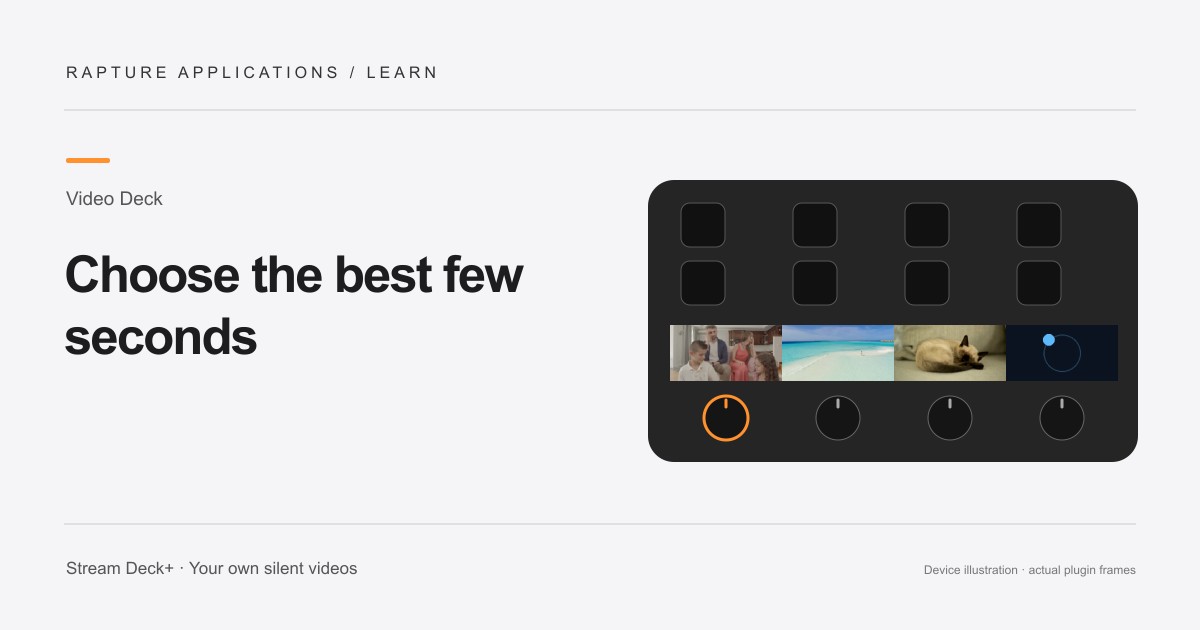
This guide covers individual-section playback with Play Videos. For one continuous video across the touchscreen, Video Deck also includes Play Panorama with shared controls and live framing.
Video Deck is coming soon to Elgato Marketplace. This guide explains the experience and how its controls work.
Choose a moment that works without sound
Phone videos contain plenty of moments worth keeping close, but not every recording belongs on a tiny desk display. Look for an action you understand immediately: a wave, a jump, a pet turning toward the camera, or a familiar view from a trip. Video Deck plays the picture silently.
Watch the clip with its sound off before adding it. If it still brings back the moment, it is a good candidate. A recording centered on a conversation may be meaningful in your photo library but harder to recognize from a quick glance at the strip.
Trim a copy around the part you want
Use your usual video editor to save a copy containing the moment you want to display. Keep the original recording intact. Video Deck uses up to the first five minutes of a file, so trimming is especially useful when your favorite moment happens later in a longer recording.
Video Deck keeps the source frame rate up to thirty frames per second: twenty-four stays twenty-four, thirty stays thirty, and sixty is reduced to thirty without slowing the clip down. Short clips also make pleasant loops easier to find. Watch the ending followed immediately by the beginning. If that jump feels distracting, choose a different start or end, or use a shorter section with less camera movement.
Check the shape before choosing Fill
Each touchscreen section is 200 × 100 pixels: a wide picture. A vertical phone video has a very different shape. Fill section (crop edges) fills the display but can crop a large part of that image, so check the subject throughout the clip.
Choose Fit whole video (may show borders) to preserve the full composition. If you prefer an edge-filling picture, prepare a wide crop in your editor that keeps the subject in view. Video Deck’s video fit control chooses between filling and fitting; it does not provide a moving crop that follows a person.
Import, then check it at your desk
Choose the local file in the Play Videos action. The picker accepts MP4, M4V, MOV, WebM, MKV, and AVI files; the encoding inside the file also affects whether it can be imported. If one file fails, try a fresh MP4 export using H.264 from your editor.
After importing, watch the whole clip on the device at your normal viewing distance. Use the dial to rewind and inspect the important moment. Keep the version with the clearest subject and most comfortable loop; extra source resolution cannot add detail beyond the section’s small display.
Explore Rapture Applications apps and plugins
Give one video the whole strip
For one video across the whole touchscreen, add Play Panorama to all four dials and choose the same panorama in each action. Select your video once, then adjust the picture while watching your Deck. You can choose a different panorama for another page.
Choose Play Videos for separate clips or playlists in individual sections, and Play Panorama when you want one video to fill the whole strip.