
RAPTURE APPLICATIONS
Play a video playlist on your Stream Deck+ touchscreen
Add several local videos to one Stream Deck+ section and play them in order, or keep a single favorite clip looping with Video Deck.
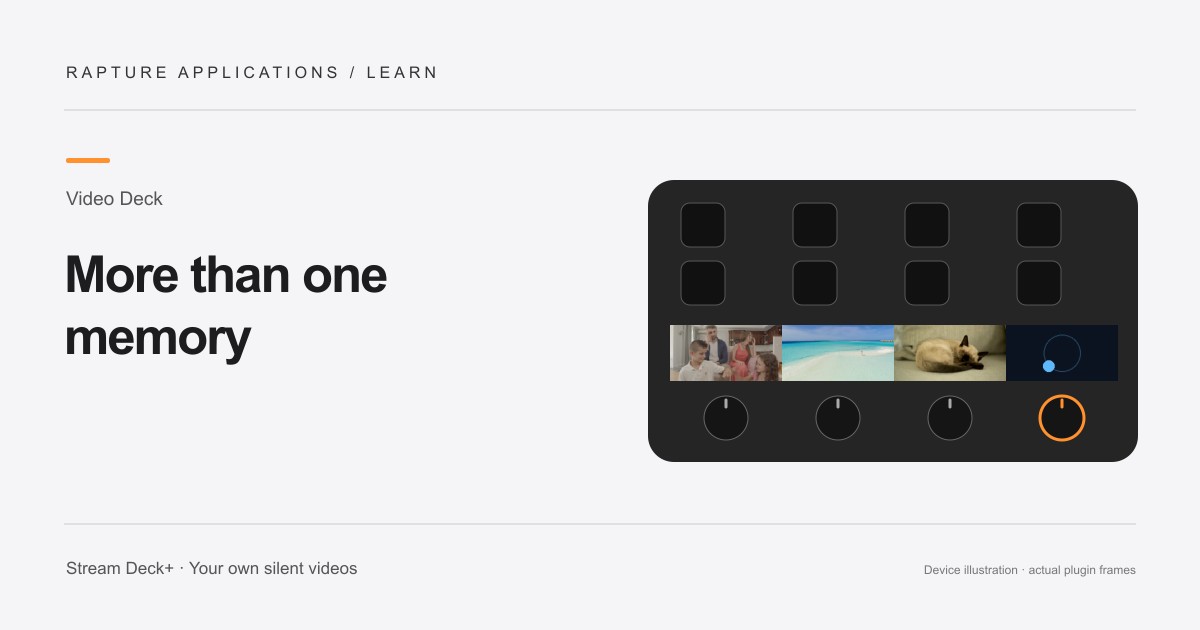
This guide covers individual-section playback with Play Videos. For one continuous video across the touchscreen, Video Deck also includes Play Panorama with shared controls and live framing.
Video Deck is coming soon to Elgato Marketplace. This guide explains the experience and how its controls work.
Build a collection around a few good moments
A video playlist lets one small touchscreen section show more than a single memory. Put together a few pet clips, highlights from a family outing, or quiet scenes from a vacation. Each clip should be enjoyable on its own because you may only glance at the strip for a moment.
Keep the first collection short enough to watch all the way through while setting it up. You can add more later. Matching the clips by subject or mood usually creates a more comfortable desk display than combining fast cuts, dark footage, and very different camera angles at random.
Add the clips to one action
Select Video Deck’s Play Videos action in Stream Deck. Choose the first file, then use + Add video for each additional clip. Each newly added video starts playing automatically; tap the touchscreen or press the dial to pause. Every item has a separate picker and Play this video button, making it possible to replace one file or check a particular clip without rebuilding the list.
Let each video finish adding before choosing the next one. Larger files may take a few minutes. Your video starts playing when it is ready.
Choose automatic rotation or a single clip
Enable Play videos one after another to run the list in order, then start again. Forward loop is a good starting playback mode for a collection. Review the transition between clips so the full sequence feels pleasant at your desk.
Turn sequential playback off to keep only the selected clip in use. Choose Play this video beside that item, then select its playback mode. Your other files remain in the collection, ready for the next time you want a different memory on screen.
Give separate sections their own collections
Each Play Videos playlist uses one touchscreen section. Add another Play Videos action to a different dial for a second collection. If you would rather show one video across the whole strip, choose Play Panorama.
Use each section for a clear purpose: perhaps a family playlist on one dial and a decorative loop on another. Keep the action’s page active while you want the videos visible. Turn a dial to seek through its current clip and enable gentle resume when you want it to carry on after you finish.
Explore Rapture Applications apps and plugins
Give one video the whole strip
For one video across the whole touchscreen, add Play Panorama to all four dials and choose the same panorama in each action. Select your video once, then adjust the picture while watching your Deck. You can choose a different panorama for another page.
Choose Play Videos for separate clips or playlists in individual sections, and Play Panorama when you want one video to fill the whole strip.