
RAPTURE APPLICATIONS
Fill or fit? Make videos look right on the Stream Deck+ strip
Understand Video Deck’s Fill section and Fit whole video options, avoid unwanted picture borders, and keep faces visible in a small display.
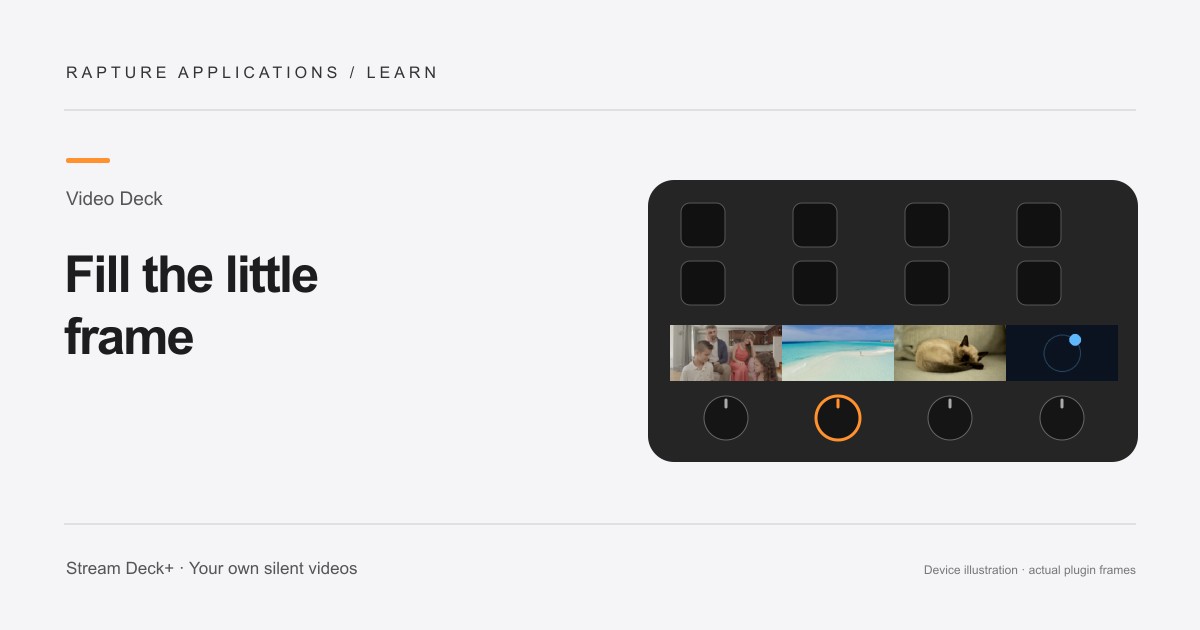
This guide covers individual-section playback with Play Videos. For one continuous video across the touchscreen, Video Deck also includes Play Panorama with shared controls and live framing.
Video Deck is coming soon to Elgato Marketplace. This guide explains the experience and how its controls work.
The picture and the display have different shapes
A black border does not always mean a video is playing incorrectly. It can mean the complete picture is being fitted inside a display with a different shape. Video Deck uses a 200 × 100-pixel section for each dial action, so ordinary widescreen, square, and portrait videos all need a framing choice.
Fill section (crop edges) and Fit whole video (may show borders) make that choice explicit. One favors a filled section; the other favors keeping the entire image. Choose according to the subject rather than using the same setting for every clip.
Use Fill for a picture that reaches the edges
Select Fill section when you want the video to occupy the whole section. Video Deck scales and crops the picture to match that area. Decorative loops, scenery, and centered subjects often work well because losing a little at the edges does not remove the point of the clip.
Watch the beginning, middle, and end after changing the fit. A person might move toward the edge, or a camera movement might bring an important detail into view. The crop should work for the whole clip rather than just the first frame.
Use Fit when the whole picture matters
Choose Fit whole video when cropping would hide a face, a pet, or a detail you want to preserve. The full composition stays visible, and borders can appear where its shape does not match the section. This is often the more useful choice for tall phone recordings.
If the subject becomes too small, make a separate wide crop in your video editor before importing it. That gives you control over which part stays visible. Avoid repeatedly enlarging the original just to remove borders if the resulting crop cuts out the moment you wanted.
Choose separate videos or one panorama
Add Play Videos to each dial when you want four separate sections, each with its own clip, playlist and fit setting. For one video across the full touchscreen, use Play Panorama instead.
For a consistent look, choose clips with similar brightness and simple subjects. For variety, give each section a different role. Test the layout on the page you normally use, then keep whichever arrangement feels enjoyable without making the controls harder to recognize.
Explore Rapture Applications apps and plugins
Give one video the whole strip
For one video across the whole touchscreen, add Play Panorama to all four dials and choose the same panorama in each action. Select your video once, then adjust the picture while watching your Deck. You can choose a different panorama for another page.
Choose Play Videos for separate clips or playlists in individual sections, and Play Panorama when you want one video to fill the whole strip.