
RAPTURE APPLICATIONS
Turn your Stream Deck+ into a miniature personal video frame
Put a family moment, pet video, or vacation clip on your Stream Deck+ touchscreen with silent playback and dial-controlled rewind.
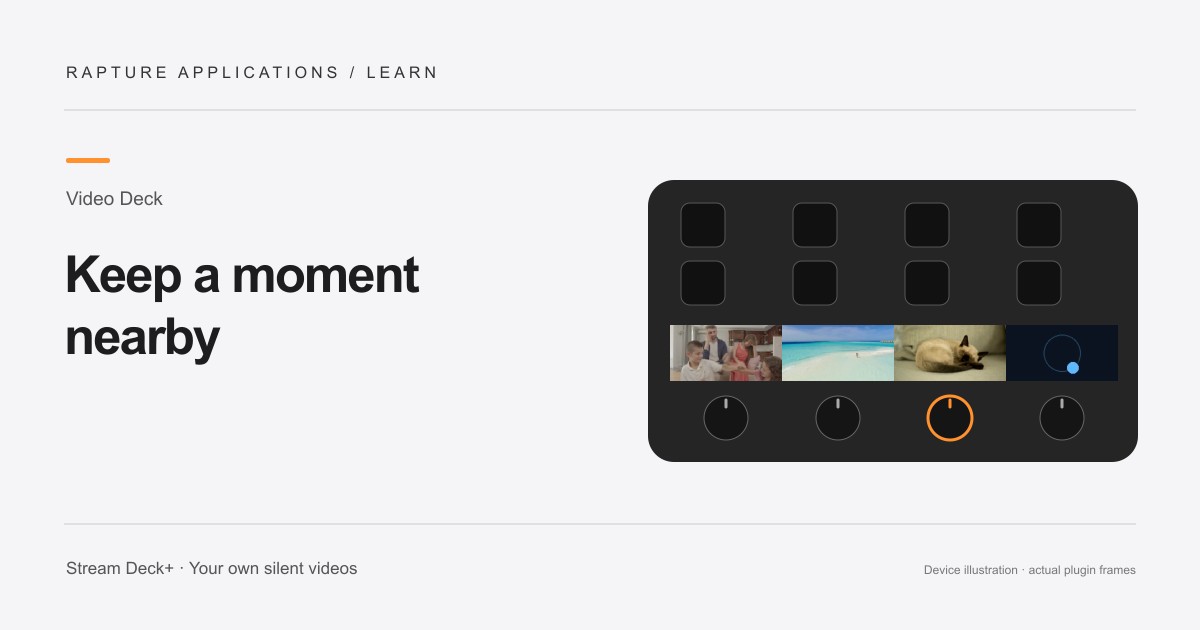
This guide covers individual-section playback with Play Videos. For one continuous video across the touchscreen, Video Deck also includes Play Panorama with shared controls and live framing.
Video Deck is coming soon to Elgato Marketplace. This guide explains the experience and how its controls work.
A small place for a favorite memory
Your Stream Deck+ can hold a little more of your life than shortcuts. Video Deck plays local videos on its touchscreen, turning a section beside your controls into a miniature video frame. A child laughing, a pet stretching, or a few seconds from a trip can become part of your everyday desk.
Choose a moment that makes sense without sound. Video Deck plays silently, so the picture should carry the memory. A close-up gesture or familiar face works better here than a long scene that only becomes meaningful after hearing a conversation.
Put your first clip on the strip
In Stream Deck, drag Play Videos onto a dial. Select it, choose a local video using the file picker inside Video Deck, and let the import finish. Choose Play this video to display it. Turn the dial to move backward or forward, and press it or tap the section to pause and play.
Each action fills one of the four touchscreen sections. Start with one clip while leaving the other dials available for your normal controls. If you want several independent pictures, add Play Videos to other dials and choose their files separately.
Keep the important part in view
Fill section (crop edges) makes the picture reach the edges of its section. The section is wider than a portrait phone video, so check whether a face or subject is cropped. Fit whole video (may show borders) keeps the full image visible when preserving the whole moment matters more than filling the display.
A short clip with one clear subject is a good first choice. Each video plays for up to five minutes; longer files use their first five minutes. To display a moment later in a long recording, trim a separate copy to that moment before adding it.
Let it loop or revisit the best part
Use Forward loop to keep your memory moving. Turn the dial to rewind to a favorite expression, then let playback resume gently if that setting is enabled. Pause first when you want to hold a moment and move through it deliberately.
Video Deck displays media while its action is on the active page and the device is awake. Put it on a profile you use often so the memory stays nearby during your desk time. Keep the original video backed up; your everyday display should complement the family archive, not replace it.
Explore Rapture Applications apps and plugins
Give one video the whole strip
For one video across the whole touchscreen, add Play Panorama to all four dials and choose the same panorama in each action. Select your video once, then adjust the picture while watching your Deck. You can choose a different panorama for another page.
Choose Play Videos for separate clips or playlists in individual sections, and Play Panorama when you want one video to fill the whole strip.