
RAPTURE APPLICATIONS
Use the Stream Deck+ dial as a miniature video playback control
Rewind local videos, pause on a favorite moment, and choose whether playback gently resumes after seeking with the Stream Deck+ dial.
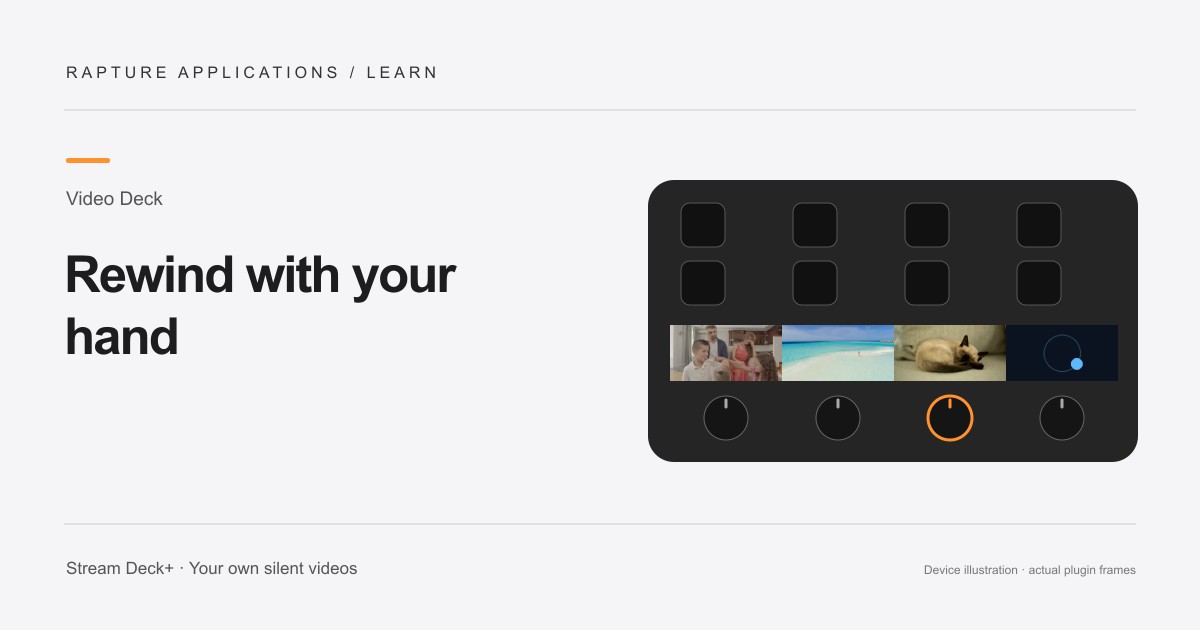
This guide covers individual-section playback with Play Videos. For one continuous video across the touchscreen, Video Deck also includes Play Panorama with shared controls and live framing.
Video Deck is coming soon to Elgato Marketplace. This guide explains the experience and how its controls work.
Reach for the moment you want to see again
A tiny video frame is more fun when you can rewind it. Video Deck connects a local clip on the touchscreen to the dial directly underneath. Turn backward to revisit an expression, turn forward to move through the clip, and press to pause or play.
Start with a video containing an obvious gesture. A pet looking toward the camera or someone waving makes the controls easy to understand. You are moving through the display copy of that clip; seeking does not edit the original recording.
Choose between a quick rewind and a held frame
Leave the video playing when you want a quick rewind during normal playback. Turn slowly to move a little or turn farther to travel through more of the clip. The dial gives you a direct way to revisit a moment without opening a video player on your main screen.
Pause first if you want to inspect the picture deliberately. A paused video stays paused while you seek, so the frame does not move away when you stop turning. Press again or tap the Play Videos touchscreen section to continue.
Let playback return gently
Enable Resume gently after turning the knob if you want a playing clip to carry on after seeking. When you stop turning, playback eases back into motion. It makes the dial feel like a brief interruption rather than a command that requires another press every time.
Turn the setting off when you prefer seeking to leave the video paused. This is useful for choosing a particular expression to keep on screen. Gentle resume only returns a video that was already playing; it does not override a pause you deliberately chose before seeking.
Give the clip a comfortable pace
Try Half speed for a calm decorative loop, Original for a familiar memory, or Double for a more energetic effect. Forward loop, Reverse loop, Ping-pong, and Play once provide different ways to revisit a clip. Forward playback will usually make the most sense for a personal moment.
Keep the video’s action on the active page while you want to use its controls. Each dial controls its own section, so you can pair a family clip with a pet video or a simple moving pattern. Choose the arrangement that feels natural to reach for at your desk.
Explore Rapture Applications apps and plugins
Give one video the whole strip
For one video across the whole touchscreen, add Play Panorama to all four dials and choose the same panorama in each action. Select your video once, then adjust the picture while watching your Deck. You can choose a different panorama for another page.
Choose Play Videos for separate clips or playlists in individual sections, and Play Panorama when you want one video to fill the whole strip.